ADVERTISEMENT

Online Piano Lessons with Skype & More

  • It is already possible to give online piano lessons via video conferencing tools with just a smartphone.
  • However, poor sound quality and awkward camera positioning can make things difficult—you can easily resolve these issues with a little technical effort.
  • Read on for tips on setting up an effective and reliable system for online piano lessons.
Teaching online piano lessons using an external webcam.
Teaching online piano lessons via Skype. (Photo: J. Sunderkötter)
ADVERTISEMENT

Giving online piano lessons via Skype, Zoom, and similar platforms is an easy way for many piano teachers to keep offering face-to-face lessons, especially during the pandemic. But is it possible to achieve better sound quality without investing in expensive equipment? Here are a few practical tips and solutions that work well without much effort.

ADVERTISEMENT
ADVERTISEMENT

Online Piano Lessons – With or Without a Teacher?

There are various ways to take or give online piano lessons. Broadly speaking, a distinction can be made between e-learning platforms and live remote lessons. E-learning platforms provide access to pre-recorded piano courses designed for self-directed learning—in other words, without a teacher. Examples include Flowkey*, Skoove*, and music2me*.

Remote lessons, on the other hand, are comparable to distance learning in schools. Teachers and students connect via video chat. During the coronavirus lockdowns, many music schools and piano teachers switched to this format to continue offering face-to-face piano lessons.

Doozzoo, for instance, specializes in remote music lessons. The platform, developed by Bechstein Digital, provides professional tools for teachers. But whether you use Doozzoo or a simple video chat tool, a bit of technical equipment is necessary. We’ll take a closer look at that in this workshop. Our main focus will be on a simple, budget-friendly setup that allows high-quality audio and video streaming. The setup described here is equally useful for anyone who wants to take piano lessons online.

Video Chat: Advantages and Disadvantages

It’s important to note that video chat platforms like Skype are not the ideal solution for online piano lessons, primarily due to their limited sound quality. Even the best audio and video equipment can’t fully compensate for this. However, there are ways to improve the experience with minimal technical effort.

Of course, you can also invest in professional recording and streaming equipment. With the right combination of tools, such as audio interfaces, cameras, webcams, and live video mixers, you can create live streams, online sessions, and even live concerts with excellent image and sound quality. But is there an easier way? The pandemic has shown how quickly established platforms evolve and how new ones constantly emerge.

In terms of sound quality, Skype is the weakest option for online piano lessons. Zoom performs somewhat better in this respect, offering stereo audio transmission and more detailed sound settings. However, none of the common video chat tools were designed specifically for music lessons. This becomes apparent as soon as you start using them.

Nevertheless, Skype and similar platforms deliver the essentials: reliable audiovisual communication that’s easy to use and widely available. In this improvised form of remote teaching, those qualities often take priority over sound fidelity. What’s more, it’s entirely possible to create a setup that’s more comfortable and musically satisfying than using only a smartphone.

How Much Technology Is Needed for Online Piano Lessons?

Let me say this upfront: If you’re hesitant about setting up technology, it’s best to stick with the simplest option: video conferences via smartphone. There’s hardly a quicker or easier way to connect.

When I started giving piano lessons over Skype using my iPhone, I quickly realized that the poor sound quality wasn’t the only source of frustration; the visual communication during lessons also felt awkward.

So, I started thinking about how to improve my setup for remote piano teaching. Without making any major investments, the focus should be on the equipment we already use every day. The setup should be…:

  • compact and easy to handle,
  • quick to assemble,
  • affordable,
  • and, above all, practical for teaching on the go.

Book Recommendation: Online-Klavierunterricht klipp und klar

In this German book, piano teacher Ratko Delorko addresses music educators who want to start teaching online. The 130-page guide explores practical ways to integrate technology and, above all, how to deliver effective online music lessons. It’s particularly helpful for those who aren’t very tech-savvy, as the author explains technical issues in simple, easy-to-follow language and offers affordable, hands-on solutions.

Click here for the review.

Remote Piano Lessons: Setup on a Small Budget

As long as you already have a computer, smartphone, headphones, or a headset, and of course, a piano, this setup doesn’t require any major expenses. Any additional purchases can be kept to a minimum. Compared to the cost of a full recording and video setup, the financial investment here remains very manageable.

Giving Online Piano Lessons: Optimizing the Camera Angle

The requirements for remote piano lessons can be easily derived from everyday teaching practice. However, unlike in-person lessons, both the teacher and the student sit at their own instruments at home rather than together at one piano.

Communication depends on the transmission of speech, image, and sound signals. Most importantly, the camera angle should ensure that the hands are clearly visible so that technical aspects of playing, such as fingering and hand position, can be observed.

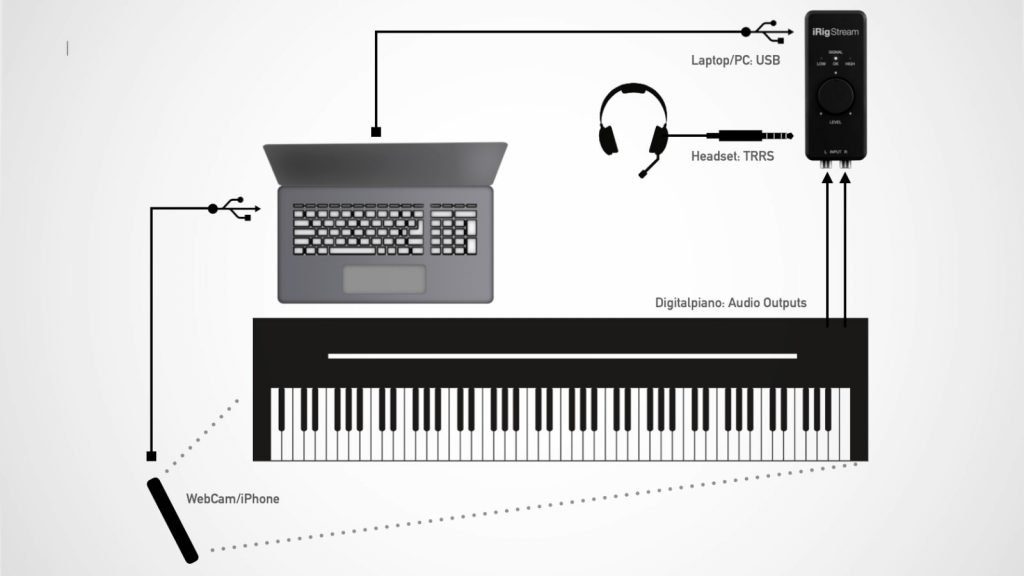
The optimal setup for online piano lessons.

Visual Communication via Webcam

Due to the fixed viewing angle on your hands and keyboard, the built-in FaceTime camera in laptops or mobile devices can work in a pinch, but it’s rather awkward for teaching dialogue. An external webcam that can be positioned independently of the computer is a far better solution.

If you’re using an external webcam, position it so that it looks over your left shoulder toward the keyboard while you play. Use the webcam’s landscape (widescreen) mode for the best field of view. You can mount the webcam on a tripod or, if it has a clip, simply attach it to the back of a chair. This works surprisingly well.

Place your laptop or display directly in front of you. This way, it’s easy to glance up from the playing position to the other’s hands and keyboard on the screen.

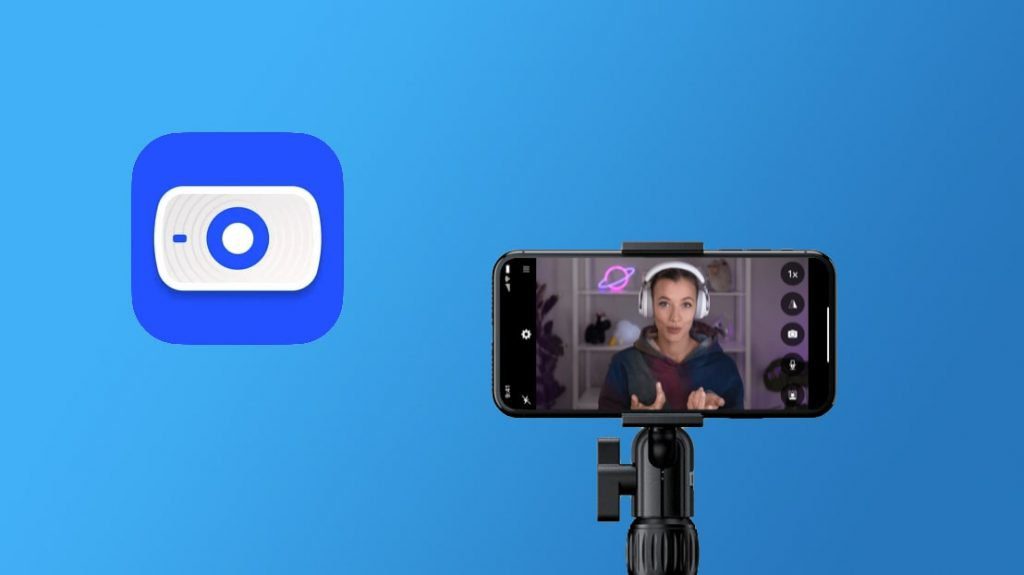
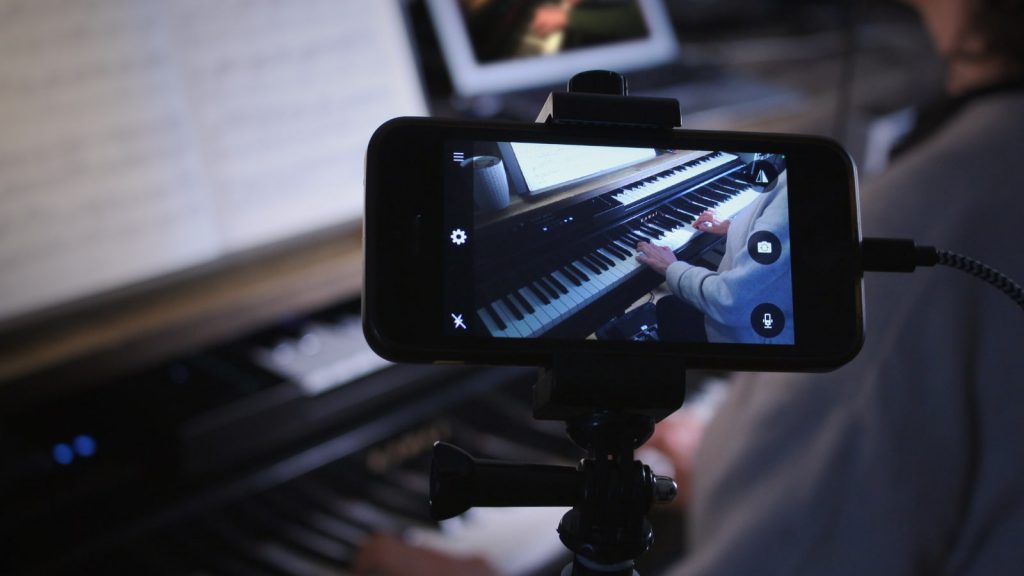
Using your smartphone as an external webcam: EpocCam by Elgato makes it possible. (Image Source: Elgato)

Using Your Smartphone as a Webcam

Don’t have a webcam handy? Or maybe your old one stopped working, just like the other relics in your drawer of computer accessories? No problem! You can easily use your smartphone as a webcam.

This works very well with a few apps. I’ll highlight three, and personally recommend the latter two:

  1. iVCAM: Free to use. However, if you want to avoid ads, it’s worth investing in one of the following paid options.
  2. Elgato EpocCam (iOS & Android): A reliable and high-quality app that turns your phone’s high-resolution camera into a webcam. All you need to do is install a small driver on your computer, which only takes a minute. More information about EpocCam.
  3. iOS Camera for OBS: A great choice if you’re already using Open Broadcaster Software (OBS). However, this app only works with iOS devices and OBS, so EpocCam is generally more flexible (and cheaper). More information about OBS Camera.

All of these apps connect your smartphone to your laptop or PC either via Wi-Fi or a USB cable. I personally prefer the USB connection, as there’s less latency. The remaining small delay in the video signal is completely manageable.

I installed EpocCam on an iPhone SE and have been completely satisfied with it. The $8.99 price is well worth it. EpocCam automatically switches between portrait and landscape orientation. You can also manually toggle between standard and mirrored (selfie) view.

Online Piano Lessons: Improving Sound Quality

Mobile devices are fantastic all-rounders: they can do just about everything—but rarely really well. What annoyed me most about my first remote piano lessons, apart from the modest (mono!) sound quality, was the background noise that smartphone microphones seem to love picking up. The clatter of the keys was far too loud and almost drowned out the actual piano sound.

Fortunately, there’s a wide range of accessories that can help. For example, you can attach an external microphone. And, of course, a Camera Connection Kit (for iOS) or an OTG adapter (for Android) allows you to route your instrument, microphone, and headphones through a single central device.

External Audio Hardware and Skype

Unfortunately, the Skype app generally doesn’t support external digital audio hardware on mobile devices, which complicates things considerably. On my iPhone, even the included analog headset doesn’t work properly. For online piano lessons, it’s best to use a desktop computer or laptop.

If you can’t get your external audio hardware to work with Skype’s audio and video settings, the web version, Skype for Web, is a good alternative. The only requirement is that you use the Google Chrome browser.

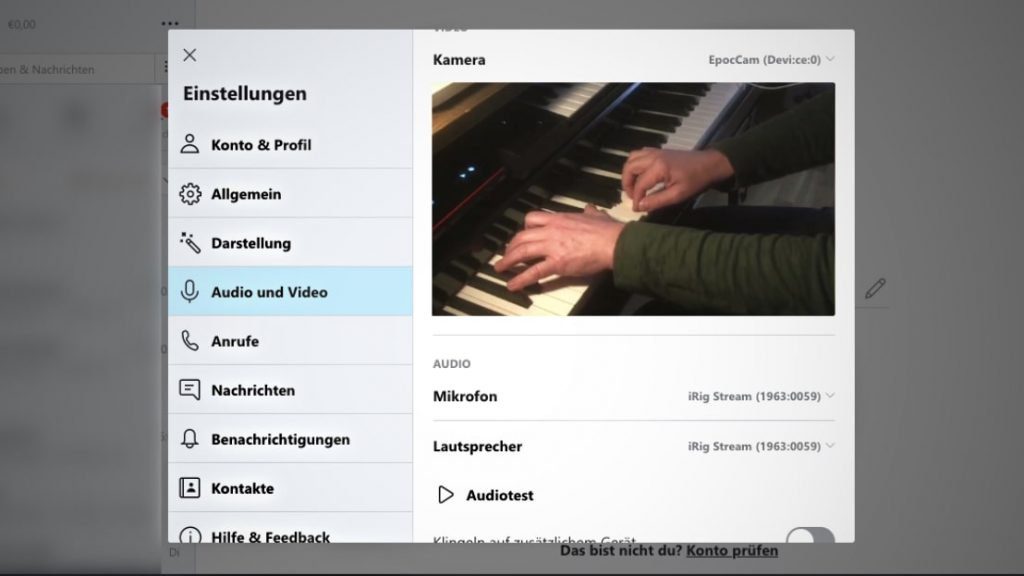
The audio and video settings in Skype for Web: EpocCam is selected as the video source, while IK Multimedia iRig Stream is set up as the audio interface.

Hardware Tip: IK Multimedia iRig Stream

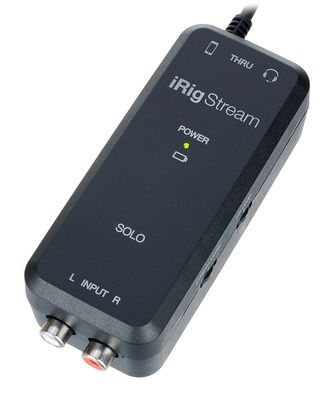
The IK Multimedia iRig Stream is a wonderfully simple solution. It’s a compact audio interface with an adjustable stereo input and a TRRS connection for a headset. After connecting my Apple headset and adjusting the mic gain and headphone volume using the side knobs, I was immediately ready for my online piano lessons.

The IK Multimedia iRig Stream is exceptionally easy to use. Priced affordably at around $100, it comes with connection cables for Lightning (iOS), USB Type-A (laptops/PCs), and USB-C (Android or current iOS devices).

Of course, you can also use other audio interfaces. However, the iRig Stream offers complete functionality in one compact unit, including loopback, by the way. This feature is useful if you want to use software instead of a digital piano for online lessons. The iRig Stream is designed for connecting a headset via TRRS. Moreover, the iRig Stream Solo is even simpler to operate, offering connections for both headsets and instruments at about half the price. Those who want more functionality can choose from a range of IK Multimedia accessories to combine, or they can opt for the larger model, the iRig Stream Pro.

Jörg Sunderkötter

→ REVIEW

The iRig Stream is a compact, flexible tool that makes live streaming, online sessions, and virtual music lessons simple and great-sounding.

iRig Stream :   99,00 €

TO THE OFFER

Alternatives to Online Piano Lessons?

Real, face-to-face lessons, of course! But let’s be realistic: as long as lockdowns and restrictions dominate public life, online piano lessons via Skype remain a practical solution. With just a few pieces of equipment, you can make the whole experience a lot more enjoyable. Here’s a setup that works:

  • Laptop or PC / Skype for Web
  • Smartphone with EpocCam app (or external webcam)
  • Headset (or microphone plus headphones)
  • IK Multimedia iRig Stream (or another audio interface with suitable connectivity)
  • Adapter cables: Jack/RCA, USB Type-A/B (printer cable)
  • Tripod with smartphone holder
Affiliate Links
IK Multimedia iRig Stream Solo
Customer rating:
(10)

Two Camera Angles? Open Broadcaster Software!

Online piano lessons work perfectly well with just one camera. However, if you want to show two perspectives, such as one face-to-face for communication and another focused on the keyboard, you’ll need the ability to switch between cameras. This is far more convenient than constantly repositioning a single camera. Although you can switch between two cameras using the settings dialog, that’s cumbersome in practice.

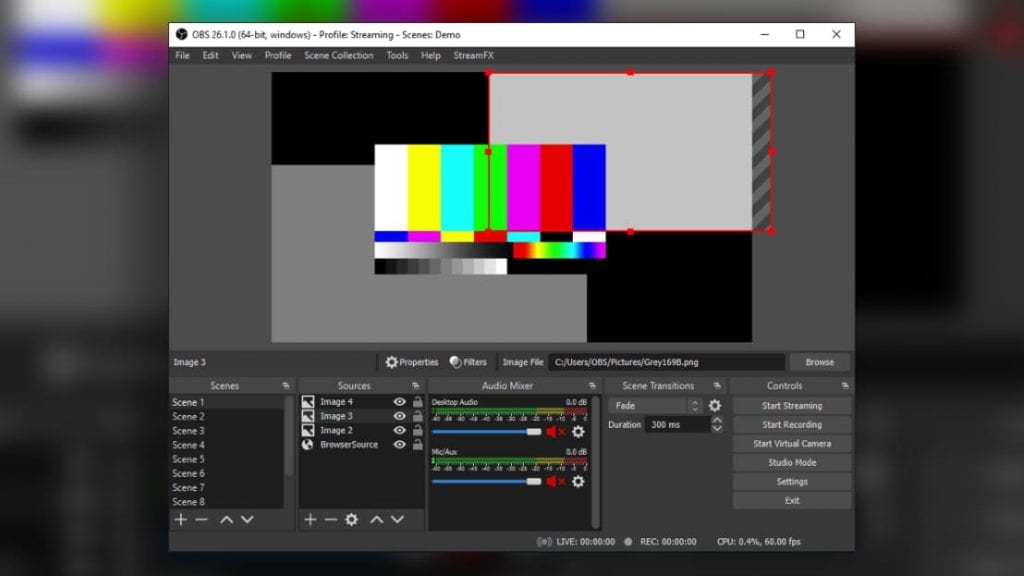
As a free DIY solution, we highly recommend the free Open Broadcaster Software (OBS). It takes a little time to become familiar with, but it offers much more functionality than you’ll actually need for online piano lessons. Essentially, it’s a compact, virtual TV studio that also supports full-featured internet streaming and video recording.

Open Broadcaster Studio is basically a small television studio for internet streaming. Thanks to VirtualCam mode, it also works with video chat programs. Open Broadcaster Studio is free for Windows, macOS, and Linux.

For online piano lessons, we only need two key features of Open Broadcaster Studio (OBS):

  • OBS allows you to control and mix multiple video sources.
  • Thanks to VirtualCam mode, OBS can stream your video feed to other programs.

This means you can use two cameras, such as the built-in FaceTime camera on your laptop plus an external webcam, EpocCam (as described above), or even a DSLR camera. OBS manages the camera angles, allowing you to easily switch between them using keyboard shortcuts. Split-screen and picture-in-picture views are also possible. You can even integrate visual media, such as sheet music displays.

Once you activate VirtualCam mode in OBS, you can use the video signal in other applications. In Skype or Zoom, for example, simply select Open Broadcaster Studio as your video source in the video/audio settings. While OBS is a complex program, it’s quite straightforward to use once you get the hang of it: Just set up one scene per video source, turn on VirtualCam, and you’re ready to go. You can then easily switch between scenes using the arrow keys on your keyboard.

Best of all, Open Broadcaster Studio is open-source and completely free to download for Windows, macOS, and Linux.

Website and download: Open Broadcaster Software

FAQ – Frequently Asked Questions About Online Lessons

Are there better tools for online music lessons?

Skype, Zoom, and FaceTime are primarily designed for video conferencing and optimized for speech rather than music. When it comes to transmitting musical instruments, their capabilities are limited: Audio is sent in mono and is often compromised by automatic noise suppression.

If you’re looking for a more professional solution, check out Doozzoo. This cloud- and browser-based platform is specifically designed for music instruction. Doozzoo offers a range of features that elevate teacher-student interaction far beyond what Skype & similar platforms can provide. The platform is free for students, but music schools and teachers must pay a fee based on the number of students. For more information, visit doozzoo.com.

Speaking of data protection: What about personal data?

On platforms such as Skype and Zoom, all participants must have registered accounts. The situation is different with services like Jitsi or Wire, which operate in compliance with the GDPR. Doozzoo is also recommended in this respect.

How are online courses different from online piano lessons?

Compared to face-to-face or remote lessons, online piano courses offered on e-learning platforms such as music2me or Skoove offer a completely different experience. You can access and work through the pre-recorded tutorials whenever you have time. However, there is no direct communication between the teacher and student.

Of course, online courses can also be enjoyable and effective for learning. It’s simply a different way of learning to play the piano. You can freely choose tutorials and favorite songs from the full range of courses and set your own learning pace. A major advantage of online piano lessons, just like traditional lessons, is the direct interaction, which allows teachers to correct mistakes immediately.

As a beginner, should you take online courses or opt for piano lessons?

It depends on how you prefer to learn and how you learn best. In general, online courses are less suitable for children, as they require a structured and independent approach. You’ll also need to learn music theory on your own. In this respect, we recommend music2me, as the content is presented by a virtual piano teacher and supported with interactive media.

However, traditional piano lessons are generally the better choice for children who are just starting out. Adult beginners and more advanced players, on the other hand, tend to do well with online courses.

Is it possible to take piano lessons via an app?

Here, too, it’s important to distinguish between online courses and online piano lessons. E-learning platforms such as Flowkey and Skoove offer apps that allow you to take lessons on your smartphone or tablet. You can also take face-to-face lessons via apps. However, keep in mind that you can only use the device’s built-in microphones and speakers since apps like Skype do not support external digital audio hardware.

If you want to achieve the best possible audio quality, using external audio hardware is highly recommended. At the very least, you should wear headphones to prevent the built-in speakers from feeding back into the smartphone’s microphone. Still, a PC or laptop remains the best option for online lessons, as it allows you to connect external audio and video equipment when using Skype or similar tools.

How can you improve audio quality at home?

The acoustics of your room can have a significant impact on audio transmission quality. If you play an electronic instrument, such as a keyboard or digital piano, you can use an audio interface to send the signal directly to your computer. However, you’ll still need a microphone for spoken communication. The IK Multimedia iRig Stream is a simple and convenient audio interface that provides stereo input for digital pianos and a headset connection. For acoustic pianos, portable audio recorders with built-in USB interfaces are a practical solution for online lessons.

Is it possible to take online piano lessons using Bluetooth headphones?

No. If you’re using a tablet or iPad, you might be tempted to use your AirPods just as you would for listening to music. However, due to the inherent system latency of Bluetooth, this won’t work for playing the piano. The sound from the app will reach your headphones with a noticeable delay, which makes it impossible to play in time.

*Affiliate link. These “advertising links” help us finance our website. If you purchase a product through one of these links, we receive a small commission at no additional cost to you. The PIANOO.com team thanks you for your support!

ADVERTISEMENT

Related Articles

01.11.2026 · Buy Yamaha Digital Piano: The Best Models Reviewed

With a Yamaha digital piano, you get a lot of performance for your money. The latest releases: Entry-level models Yamaha P-145 and P-225.

26.10.2026 · Buy Gifts for Musicians: Is a Piano the Only Option?

It doesn't have to be a grand piano—there are plenty of small and inexpensive gifts for musicians to choose from.

20.09.2025 · Buy Yamaha CLP-800 Series – Reviewing Clavinova Digital Pianos

In fall 2024, Yamaha announced the new CLP-800 series. The key refinements concern the sound generation and playback systems.

01.09.2025 · Buy Buyer’s Guide: A Portable Piano Under $2,000

With a scaled-down cabinet and speaker system, a portable piano under $2,000 offers a great keyboard and sound engine.

20.02.2025 · Buy Studiologic SL-mk2 Series – USB MIDI Controllers

The Italian manufacturer has introduced the new models of the Studiologic SL-mk2 series with new features and improved details.

20.02.2025 · Buy Speakers and Piano Sound: How Good Can Digital Pianos Really Sound?

Speakers and piano sound — does your digital piano sound better when you're using headphones? Find out why here.

13.02.2025 · Buy Kawai CN Series: CN-201 & CN-301

With their high-quality playability, the digital pianos in the Kawai CN series inspire both demanding beginners and advanced players.

09.02.2025 · Buy Product Review: Yamaha TransAcoustic Piano - Hybrid Piano

Piano or digital piano? The Yamaha TransAcoustic piano offers the best of both worlds. The perfect blend of acoustic and digital piano.

08.02.2025 · Buy Almost as Good as the Real Thing: Playing a Hybrid Digital Piano

Acoustic soundboard, grand piano action, and wooden keys: A hybrid digital piano combines maximum playing comfort with high-quality sound.

07.02.2025 · Buy Play Piano with Headphones: Hybrid Piano!

Play the piano with headphones - a hybrid piano combines an acoustic piano with a mute function and an electronic sound generation.

15.01.2025 · Buy Best Headphones for Digital Piano: Sound That Inspires

Buying high-quality headphones for digital piano: Why invest in good digital piano headphones and how much do they cost?

13.01.2025 · Buy Kawai ES Series: ES-920, ES520, ES-120, ES-60 – Portable Pianos

The Kawai ES Series is popular with beginners and advanced players alike: High-quality features at prices ranging from $400 to $1,200.